Digital artists, get ready to revolutionize your workflow! Blender 3D, combined with the magic of AI text prompts, opens up a whole new world of possibilities for creating stunning, unique procedural materials. If you’re tired of sifting through endless texture libraries or struggling to achieve that perfect look, this is your guide to a faster, more intuitive approach.
Why AI Text Prompts?
Traditionally, crafting procedural materials in Blender has involved a deep dive into node setups, tweaking parameters, and time consuming trial and error. While powerful, this method can be time-consuming and technically demanding. Using your own AI text prompts with our AIGeneration.blog Prompt Tips, offers a refreshing alternative:
- Intuitive Creation: Describe what you envision – “rough volcanic rock,” “glowing alien skin,” “iridescent butterfly wings” – and watch the AI generate the material!
- Rapid Iteration: Experiment with different looks in seconds. Simply change your text prompt and see the results instantly.
- Endless Possibilities: Break free from preset textures. AI can generate unique materials you wouldn’t have imagined.
Getting Started
- Choose Your AI Tool: Blender’s ecosystem is rapidly evolving. Many new addons are available to integrate with Blender.
- Craft Your Prompts: Be descriptive, specific, and imaginative! Here are some starting points:
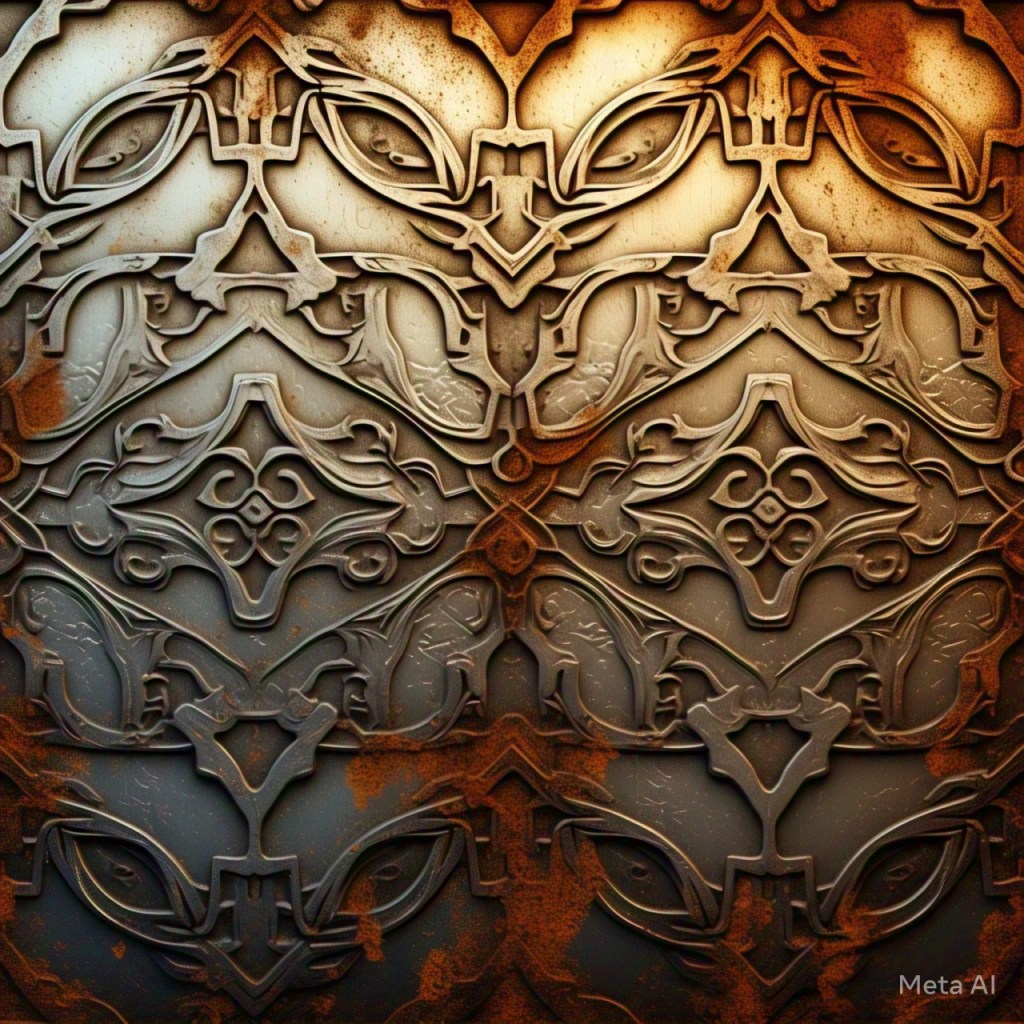
- Appearance: “Metallic surface with intricate engravings and rust”
- Properties: “Translucent glass with light refraction and caustics”
- Mood: “A material that evokes a feeling of ancient mystery”
- Refine and Iterate: Don’t settle for the first result. Tweak your prompts, experiment with different keywords, and combine concepts for unique outcomes.
- Use your own Human Manual Skills: Wacom and Huion are my personal favorite digital drawing tablets. Use them to manually create your own results while using the AI results as your reference images. This is my personal favorite because it allows me to maintain and hone my current technical art skills as a collaboration with software tools, such as AI.
Tips and Tricks
- Use Keywords: Guide the AI with terms like “seamless,” “tileable,” “PBR,” or specific art styles.
- Combine Prompts: Blend descriptive, functional, and conceptual elements for truly original materials.
- Embrace Imperfection: AI can produce unexpected results. Sometimes, the “happy accidents” are the most exciting!
Beyond the Basics
Once you’re comfortable with generating basic materials, explore advanced techniques:
- Animation: Create materials that react to light, movement, or other environmental factors.
- Masks and Layering: Use AI-generated textures as masks to combine multiple materials for complex surfaces.
- Stylization: Explore different artistic styles, from photorealistic to cartoonish or abstract.
- Lighting: learn traditional lighting techniques as they coincide with blender’s lighting options.
- Camera Settings: learn traditional camera settings as they often coincide with blender’s camera settings.
- Render Settings: learn the specific settings for photorealism or the specific styles you prefer (painterly, cartoon, etc)
- Blender Geometry Nodes: learn this skill to produce exciting motion animations.
- LookDev: research LookDev techniques to help you use lighting, camera and render options to produce the final visuals you want.
The Future of Material Creation
AI text prompts are empowering artists to work more intuitively and efficiently. As this technology continues to evolve, we can expect even more seamless integration with Blender and increasingly sophisticated material generation.
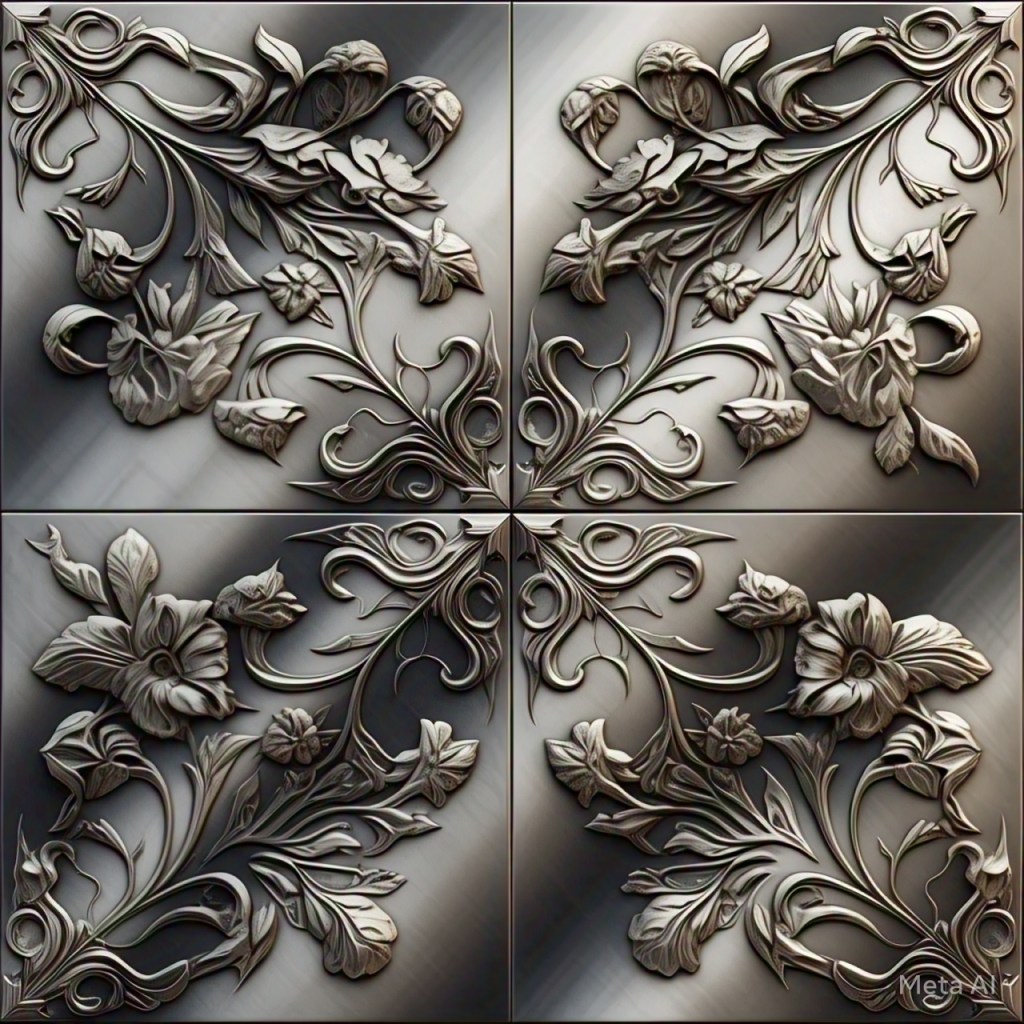
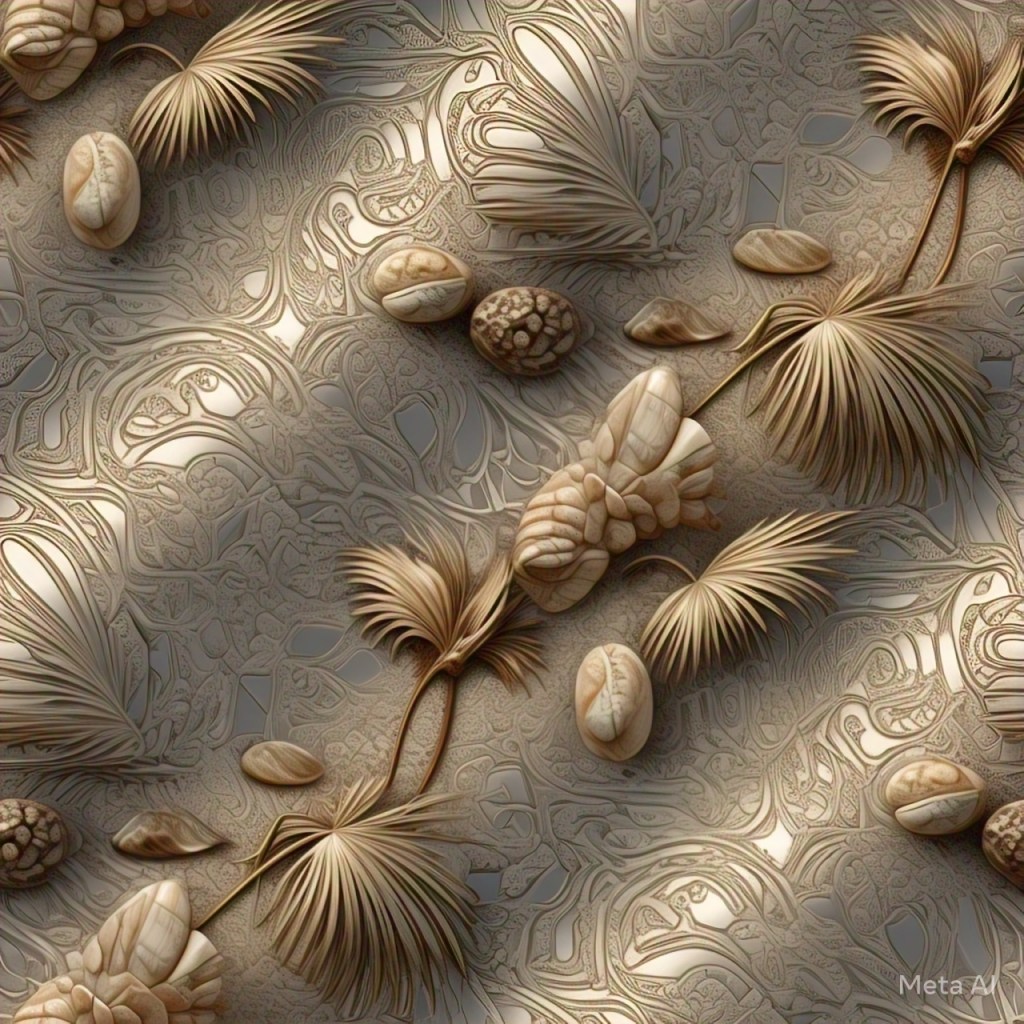
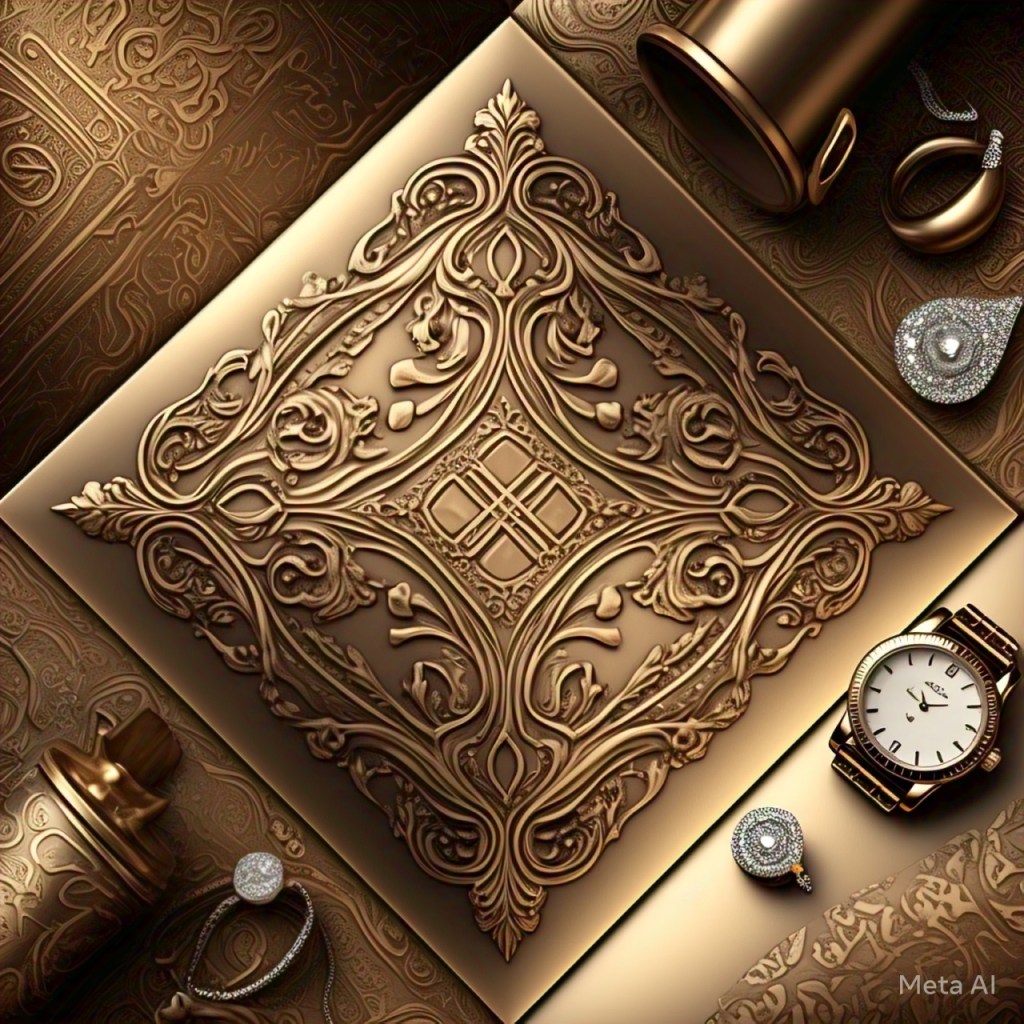
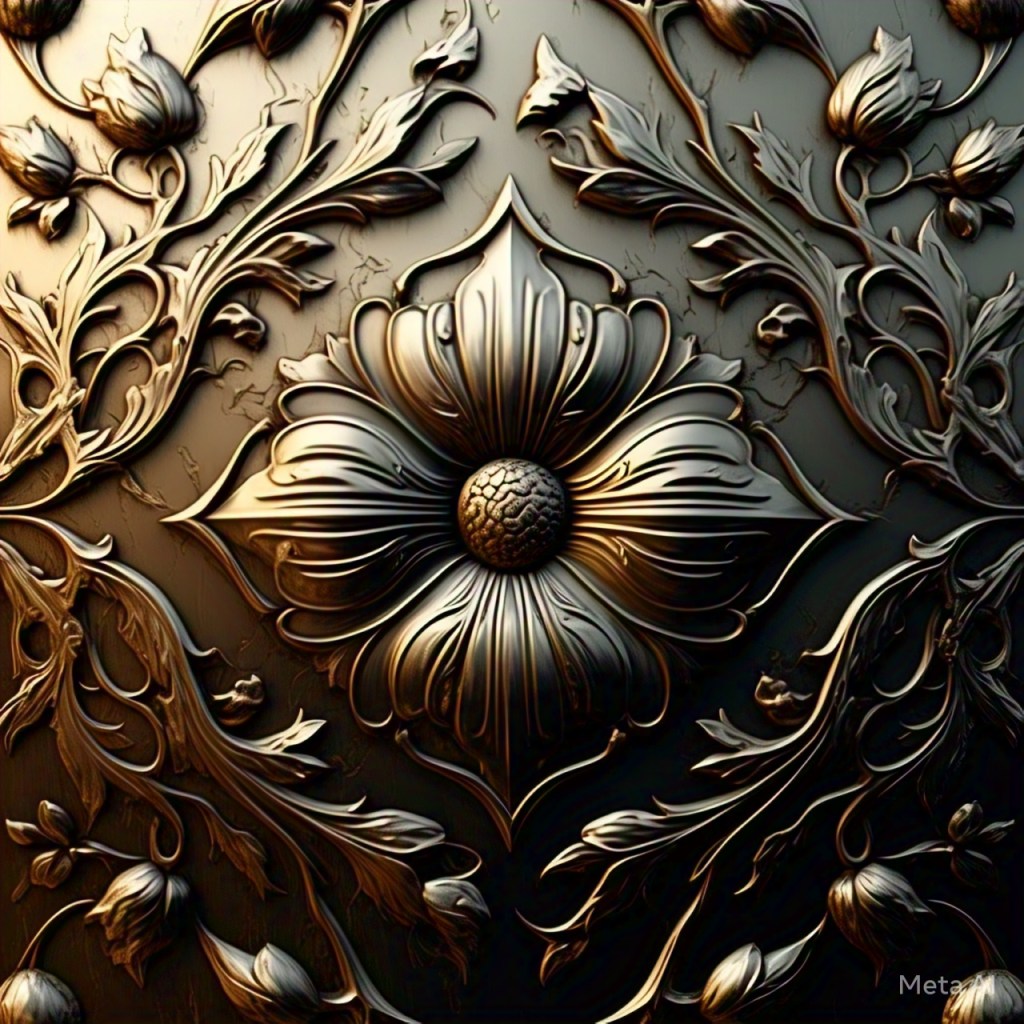
The following images were produced with Meta AI and were not edited in any way. I use 3D production software such as autodesk maya, blender 3D, photoshop, adobe substance 3D to create my own 3D materials and textures while using many different reference images like the AI image here with a combination of real world photographs I capture with a phone camera or one of my dslr cameras.
More Resources:
What are your favorite AI text prompts for generating materials in Blender? Share your creations and tips in the comments below!

 AIGeneration.blog